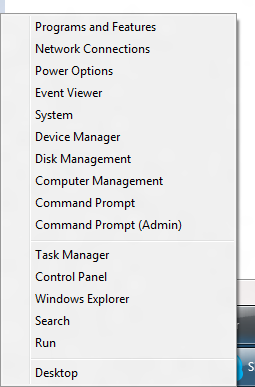
Microsoft introduced a new power user menu in Windows 8. This menu includes quick shortcuts to many management features such as Programs and Features, Network Connections, Device Manager, Computer Management, etc. This is extremely useful as it makes accessing these items more quick than it was with earlier versions of Windows.
If you are looking for the
power menu where you can shut down, restart, and sleep the computer,
click here.
The power user menu can be accessed in two ways. The first is to move the mouse to the bottom left corner of the screen and right click. The second way of accessing it is with the keyboard by pressing Windows+X.
Once open, you can then press the letters on the keyboard to access the item you want quickly. For example Windows+X followed by "N" will take you right to Network Connections. For items which share a common first letter, the letter will sequentially select them. For example Windows+X followed by "C" will select "Computer Management". Pressing enter will open it while pressing "C" again will select "Command Prompt".

 Windows 8 includes a new power user menu accessible by pressing Win+X, which I've discussed before. By pressing Win+X or right clicking in the bottom left corner of the screen, you get the menu with shortcuts shown on the left. This screenshot shows a modified Win+X menu with "Network Connections" and "Devices and Printers" added. In this post I will show how to modify the menu and add or remove commands.